How to import a KML into Google Maps (phone + laptop)
Three minutes from download to pins on your phone — Google My Maps on desktop, then Saved → Maps in the app you already use for directions.
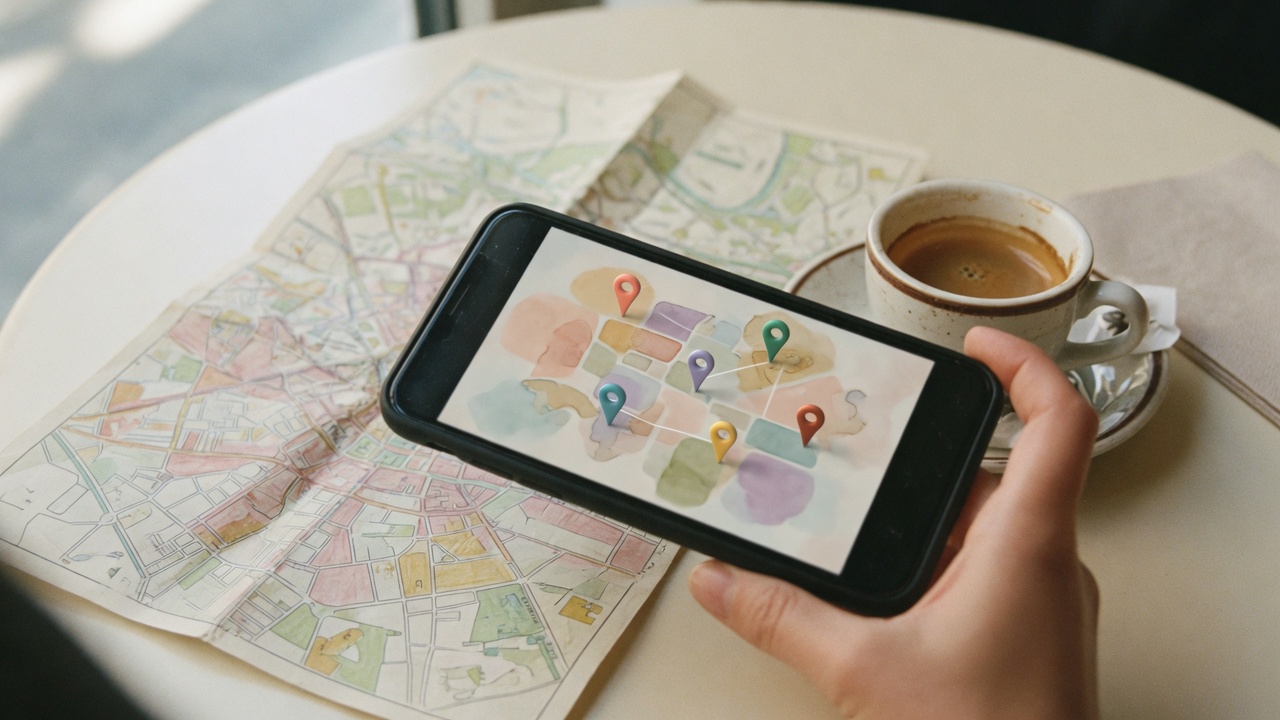
A KML (or KMZ) file is a portable list of pinned places — names, addresses, coordinates. Curated travel maps almost always ship this way because it survives apps, phones and offline planning. Once the file lives in your Google account, every device you sign into can open it.
On a laptop — import into Google My Maps
- Open google.com/mymaps while signed into the same Google account you use on your phone.
- Click Create a New Map.
- Under the first layer, click Import.
- Drop in the .kml or .kmz file. Pins appear named and addressed.
- Rename the map (e.g. “Tokyo, April”) so you can find it later among holidays and food tours.
On your phone — open it in Google Maps
My Maps and the everyday Maps app are different products that share an account. Your import lives in My Maps; you open it from Maps:
- Open the Google Maps app (iOS or Android).
- Tap your profile picture → Saved.
- Scroll to Maps. Your custom map appears as a tile.
- Tap to open. Each pin can start directions, save a place, or open details.
Make the base map work offline
Custom layers need a downloaded base map for aeroplane mode. In Google Maps: profile → Offline maps → Select your own map → download the city. Walking directions to your pins will still work when the signal dies between metro stations.
If something goes wrong
- Import failed: Rename a .kmz to .zip, extract, import the .kml inside.
- Pins missing on phone: Same Google account on both devices; pull to refresh Saved → Maps.
- Huge files: My Maps caps free maps at 10 layers and about 2,000 features per layer — split oversized files before import.
Import once on a laptop. Every phone on the trip can open the same map under the same account.
Ready-made city files
Every Pin Reef volume is built for this flow — layers under the limits, pins already named, chains filtered. Free utility KMLs (ATMs, laundry, pharmacies) work the same way from the free maps library.